Debian goes retro with a spatial desktop that time forgot
The Desktop Classic System is a rather unusual hand-built flavor of Debian featuring a meticulously configured spatial desktop layout and a pleasingly 20th-century look and feel.
DCS, as project creator "Mycophobia" calls it, has been around in one form or another since 2023, but it came to the attention of The Reg FOSS desk thanks to mentions on the Lobste.rs community and a few days later on OSnews.
It's a minimalist, opinionated setup of Debian 13 "Trixie" with the MATE desktop, specially configured for spatial operation. That itself is a rare thing in the 21st century, but it's not the only unusual thing about this distro. There's no ISO image available, just a ZIP file containing the files needed to put on a blank FAT32 USB key to make it bootable.
Incidentally, merely copying some files onto a FAT32 volume isn't enough to make it bootable using a traditional BIOS – so this is a distro only for installation on real hardware that has UEFI firmware. As a side effect, it will be significantly tricky to try it out in a VM.
We tried it on both new and old Reg FOSS desk testbeds: a modern Dell XPS 13, with a USB-C external display, and a retro ThinkPad W520 with an Nvidia switchable second GPU, which needs version 390 or earlier of the Nvidia binary driver, so it's unsupported on anything newer than kernel 6.4 or so. It ran fine on both; although it was very slow to start on the ThinkPad, once booted it became snappy and responsive.
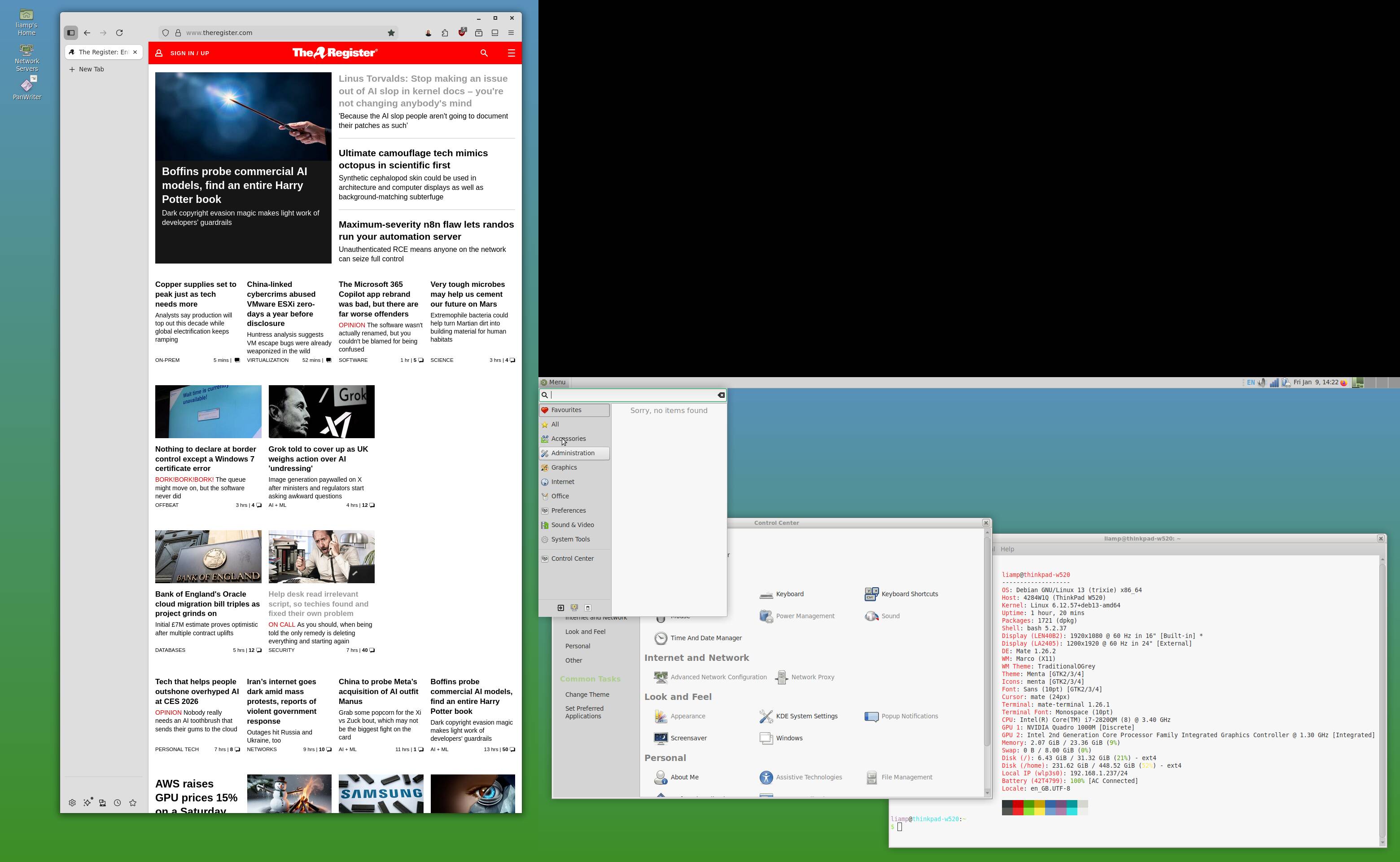
The Desktop Classic System in dual-head mode with a portrait monitor – enough to confuse some distros
The distro is a very stripped-back copy of Debian 13 "Trixie" with a customized MATE setup – the stock MATE 1.26 that Debian 13 provides. The distro is very bare. There are no additional apps, not even Firefox. There's only a mostly empty top panel, without the usual window buttons. It takes about 6 GB of disk and idles at under 800 MB of RAM in use. It's not a cut-down lightweight distro, it's just Debian with no extras at all.
The desktop is very sparse and clean, with a layout somewhat in the style of Classic Mac OS – in other words, the original Apple OS for the Mac from 1984 to 2001. No 21st century OS (except possibly Haiku) offers a true spatial metaphor, and as a result, the phrase "spatial desktop" gets misunderstood and misused, as we noted a few years back concerning Zorin OS 17. The Zorin folks interpreted "spatial" to refer to 3D effects for switching between apps and virtual desktops – but that is not the original meaning at all.
The core idea is a desktop that lets you use your spatial memory to navigate. The desktop remembers where you place icons, where windows were and their size and view settings, and when you click on a directory later, its window will reopen the same size in the same place. Mycophobia has described her preference for a spatial desktop and her choice of components at some length. She links to some truly seminal resources on the subject, notably the seriously deep and analytical essays of John Siracusa, the former Mac OS guru at Ars Technica, who wrote a lot about the spatial Finder in the early days of Mac OS X. (We'd be remiss if we didn't mention the SpatialFinder tool, which attempts to re-enable this behavior on modern macOS.) Mycophobia also links to a piece on The Decline of Usability by Carl Svensson, which eloquently critiques modern UI design.
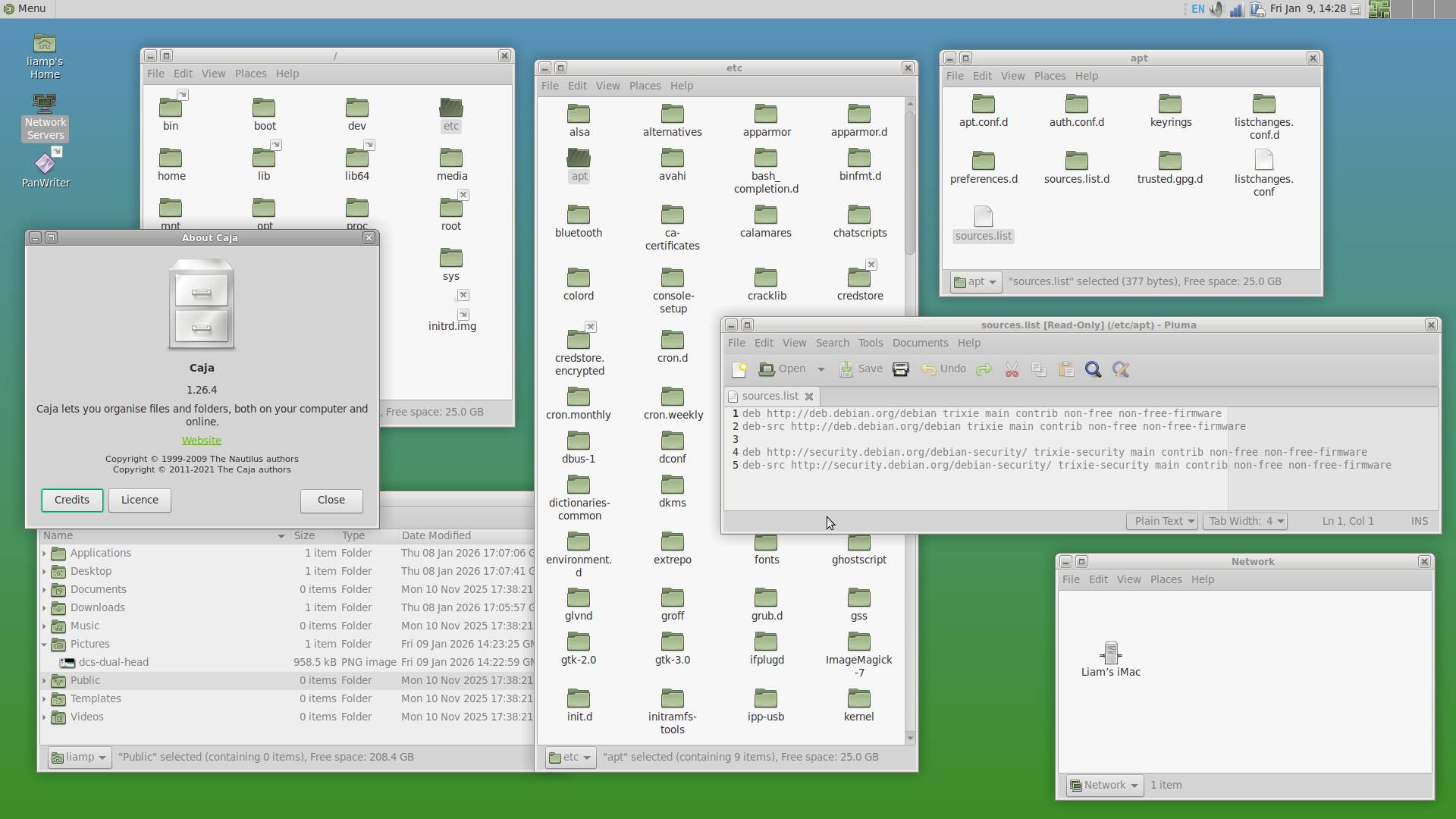
DCS with lots of Caja (née Nautilus file manager) windows open
This sort of desktop behavior polarizes people. Some people strongly prefer things to stay where they're put; others are happier with one or two automatically sorted windows. This vulture was extremely fond of Classic Mac OS, but on the other hand, we also like window tiling and self-organizing lists of files.
Either way, as well as writing long polemics about how she likes things, Mycophobia has gone the extra mile: she's put together a complete distro that you can install and use, configured how she likes it.
It's an interesting exercise, and we suspect this will appeal strongly to some people. It's the current Debian, with a very simple clean desktop layout. For instance, rather than MATE's stock three main menus, it has a single combined Windows-style one provided by the Brisk menu. We used the built-in extrepo command to add the Mozilla Debian-package repository and installed the latest Firefox:
extrepo enable mozilla
apt install firefox
And that was all it took: we were online, with a current browser. We added Chrome, Pandoc, and Panwriter, and were ready to get some work done.
By contemporary standards, the desktop setup is strange in several ways. Firstly, some standard MATE features have been turned off. There's no Win95-style row of window buttons. The closest thing is the MATE "Window Selector" applet, a discreet little icon in the notification area. That's OK with us. This vulture started using Macs when System 6 was still current, we still like Classic Mac OS today, and it has no graphical window switcher either.
- Linus Torvalds: Stop making an issue out of AI slop in kernel docs – you're not changing anybody's mind
- GNOME dev gives fans of Linux's middle-click paste the middle finger
- What if Linux ran Windows… and meant it? Meet Loss32
- The last supported version of HP-UX is no more
Window title bars are sparse too. There's a close box at the right end, as is fairly standard these days. On the left are two buttons we see much less. The leftmost is a "roll up" button, which acts like a roller-blind: it collapses the window into its own title bar, leaving nothing else on screen. A few decades ago, many Mac users added this to Mac OS with an addon called WindowShades. It's a viable alternative to the minimize function that the influence of Microsoft Windows has made ubiquitous – but unless you neaten them into a staggered array, it can leave you with a cluttered collection of title bars. To the right of this is a button labeled "Always On Visible Workspace." This pins the window so that it remains visible even when you switch virtual desktops. This vulture happens to prefer multiple physical screens to virtual ones, but if you hop between virtual desktops a lot then this could be handy.
And that's your lot. There are no maximize or minimize controls here. Less visibly, there's no snapping of windows to screen edges either. We liked the Aero Snap feature but we do understand that many people hated it, and Mycophobia seems to be one.
This leaves a big hole. Literally. The panel is almost empty – a Start menu on the left, a notification area on the right, and a yawning gap between them. Unlike Mac OS, there's no global menu bar. Again, like window snapping, this is a feature that some people like and others hate. We like them, so we tried to add them by installing the relevant MATE applet with apt install mate-applet-appmenu and added it to the panel. After a reboot, some apps used it, including Chrome and Panwriter, but more config is needed to get standard MATE accessories to use it. It may be that Mycophobia just doesn't like it, or that it doesn't integrate well. We noticed that it made the Brisk menu flicker sometimes, and although we enabled Firefox's global menu support, some menu options were inaccessible – the menus closed before we could reach some entries.
The fact that Chrome, which normally has a hamburger menu and no menu bar at all, picks up and automatically uses this feature when it's enabled shows that this can work. We wish distro makers put a bit more effort into polishing the rough edges of this existing functionality, and make it an option that can just be turned on and off, as it was in Unity. KDE Plasma really needs this option since too many of its apps are riddled with hamburger menus. We feel that the Desktop Classic System needs this option too. An ISO file and legacy-BIOS support would also be good to have.
These things aside, though, we rather like what we see here, and think it might appeal to quite a few people looking to escape the chaotic mess that is desktop UI design in the 2020s. ®