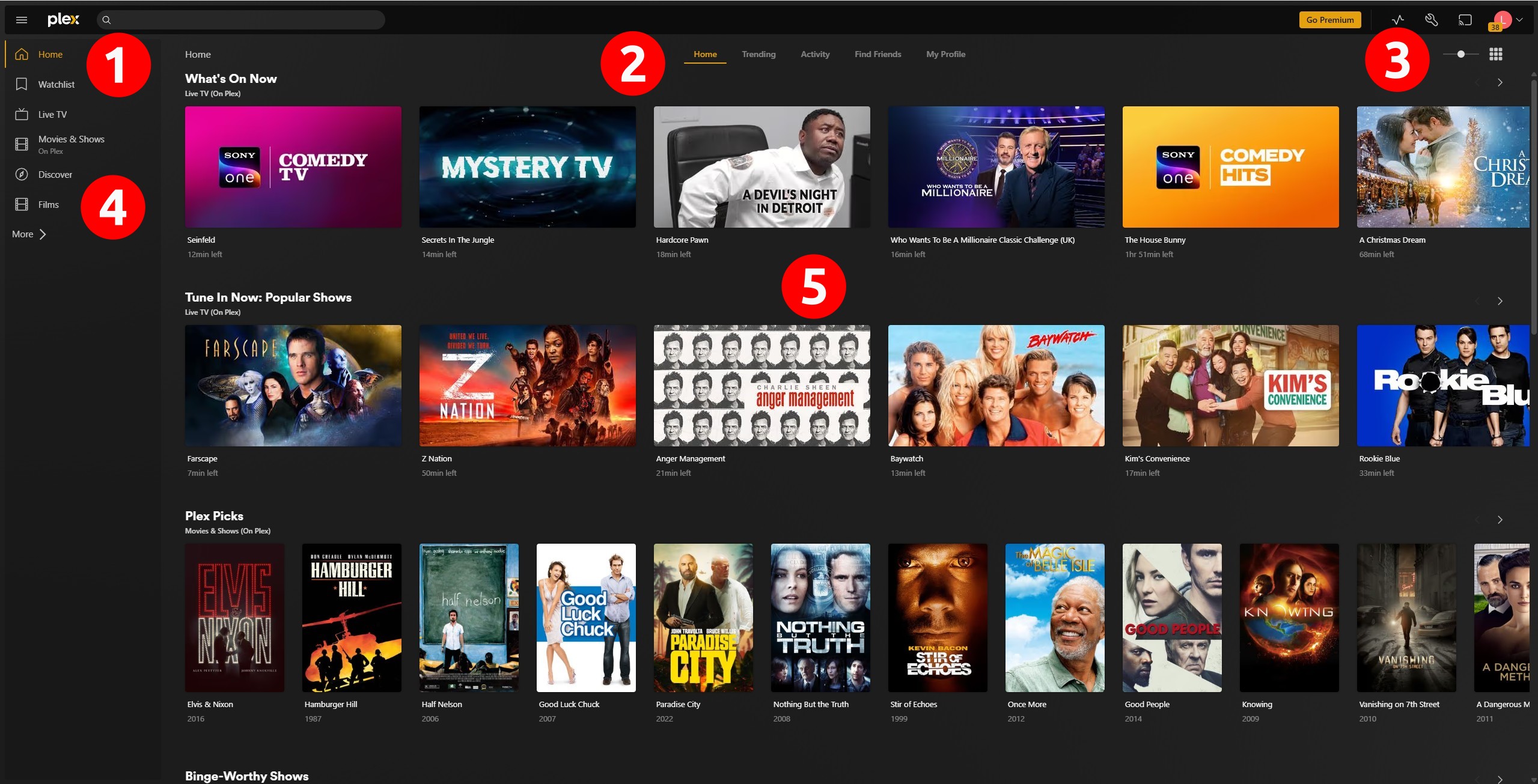
How to use Plex and a spare computer to build a streaming movie service
Build your own streaming service all from the comfort of your own home. You only need a spare PC and a few hours to serve media across your home.

(Image credit: Tom's Hardware)
In this how-to, I will show you how to create a Plex server on a spare computer running Debian Linux, in my case, a Raspberry Pi 4, but you could easily replace it with an old laptop, spare PC, or a dedicated mini PC.
There are a myriad of streaming services available, and all of them want your money. That’s not a bad thing. Some content is only available via streaming, or the best possible version is streaming. But I like physical media. I like knowing I have every episode of Star Trek: The Next Generation, Deep Space Nine, Voyager, and The X-Files. Those were the shows that I watched as a teenager, and they bring me comfort.
For this, you will need a USB drive formatted as NTFS, along with your media sorted into folders. I tend to organize my media into the following:
- Movies
- A-Z list of movies
- Series
- Series name
- Season
- Series name
With the media already on the USB drive, let's get it connected to what will become our Plex server.
Get Tom's Hardware's best news and in-depth reviews, straight to your inbox.
1. Insert the drive into a spare USB 3 port on the machine. The OS should auto-mount the drive.
2. Locate the drive’s name, label and UUID using blkid. In my case, the device name was /dev/sda1, its label was “Files,” and the UUID was “2EB36FFA4908D959.” Make a note of these details.
blkid

(Image credit: Tom's Hardware)
3. Navigate to the mounted drive and list the contents to prove that the system can see the files. On my Raspberry Pi the drive was /media/pi/Files.
cd /media/pi/Files
4. Set the permissions for the folder so that it is accessible to anyone. Yes, this is bad security practice for production servers, but for a small home media server, we can mitigate the risk. Remember to change the path to match the location of your media files.
sudo chmod 777 /media/pi/Files
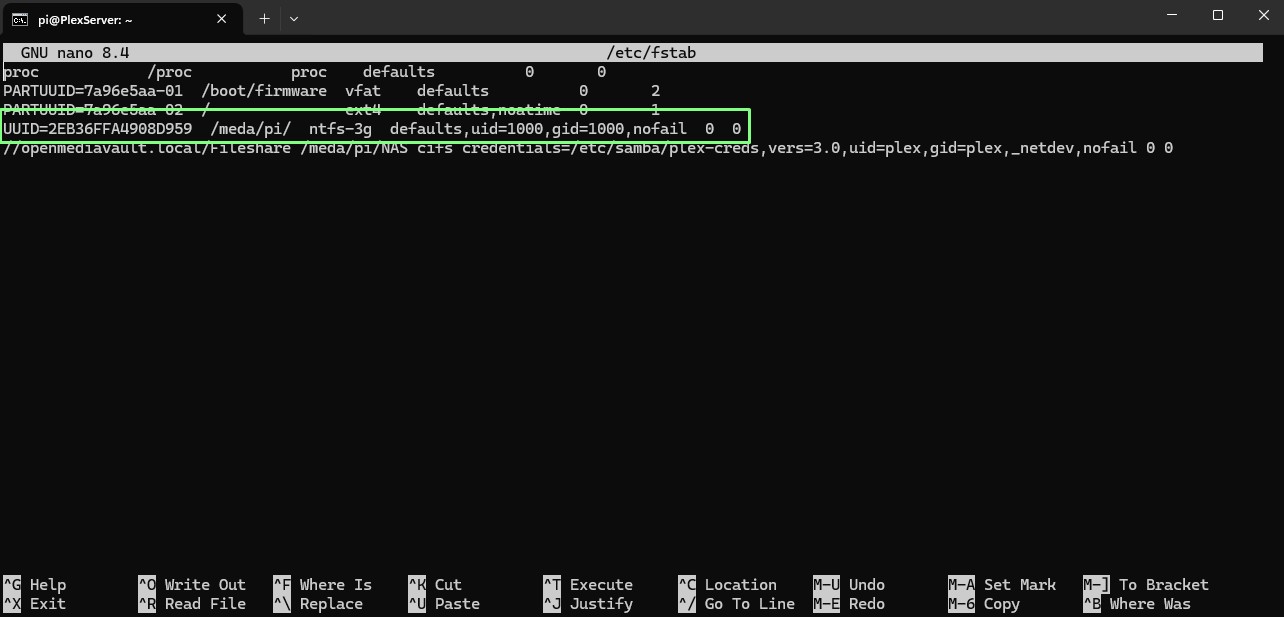
5. Unmount the drive and then remount using NTFS to test that the process works. Remember to replace the device name and the mount point with values that match yours.
sudo umount /dev/sda1
sudo mount -t ntfs-3g /dev/sda1 /media/pi/