Windows is testing a new, wider Run dialog box. Here’s how to try it
The Windows 11 Run dialog box is one of the oldest pieces of user interface still in use. It works just fine, but it has an aesthetic that harkens back to earlier versions of Microsoft’s operating system. Now, that’s set to change.
Redmond is testing a new version of the Run dialog box, if you have one of the latest Beta or Dev Insider builds installed. You'll need Insider build 26220.7523 (latest Beta and Dev build as of December 23, 2025) or newer, but you'll also need to enable the feature (see below).
The new Run dialog box is longer than the old one and, perhaps because it’s still in testing, covers over part of the taskbar. As with the classic one, you invoke it by hitting Windows key + R.
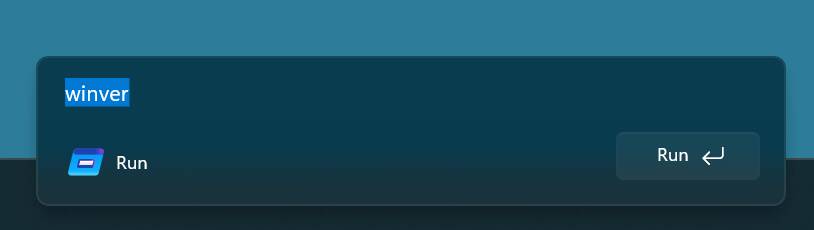
New Run dialog box aligned left - Click to enlarge
Note that this covers over the Start button and taskbar icons if you have your Start menu aligned to the left.
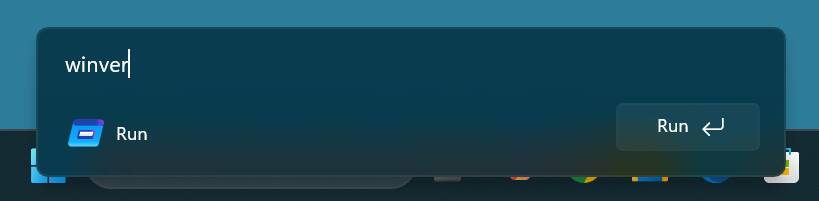
New Run dialog box covers over left-aligned Start menu and icons - Click to enlarge
That isn’t a problem with the classic Run dialog box, which appears above the taskbar.
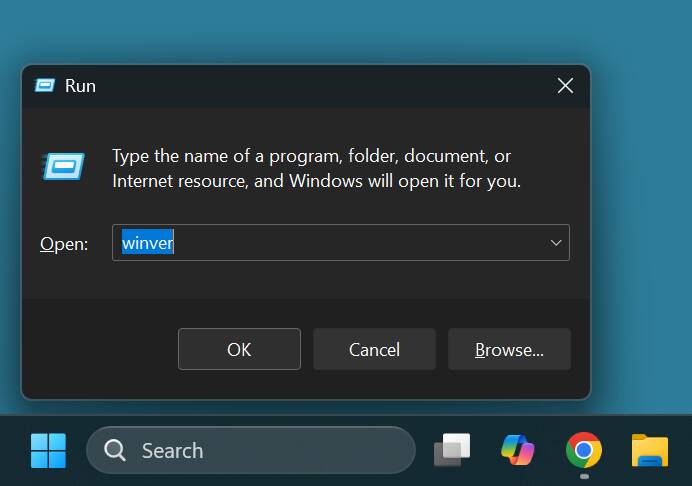
Classic Run dialog box does not cover the Start button - Click to enlarge
- Latest Windows 11 updates may break the OS's most basic bits
- Windows 11 still barely pulling ahead of 10 despite end-of-support push
- Windows 11 26H1 is coming ... for new processors only
- Windows Insiders get a glimpse of Microsoft's agentic future
How to enable the new Run dialog box
If you want to enable the new Run dialog box on your PC and have the requisite Windows Insider build installed, you must start by downloading the ViveTool, a utility that allows you to turn on hidden features. Then unzip the ViveTool to a new directory you’ll call C:\vive.
Launch the command line with administrator privileges. To do that, search for “cmd” in Windows search, right click on the top result and select Run as administrator.
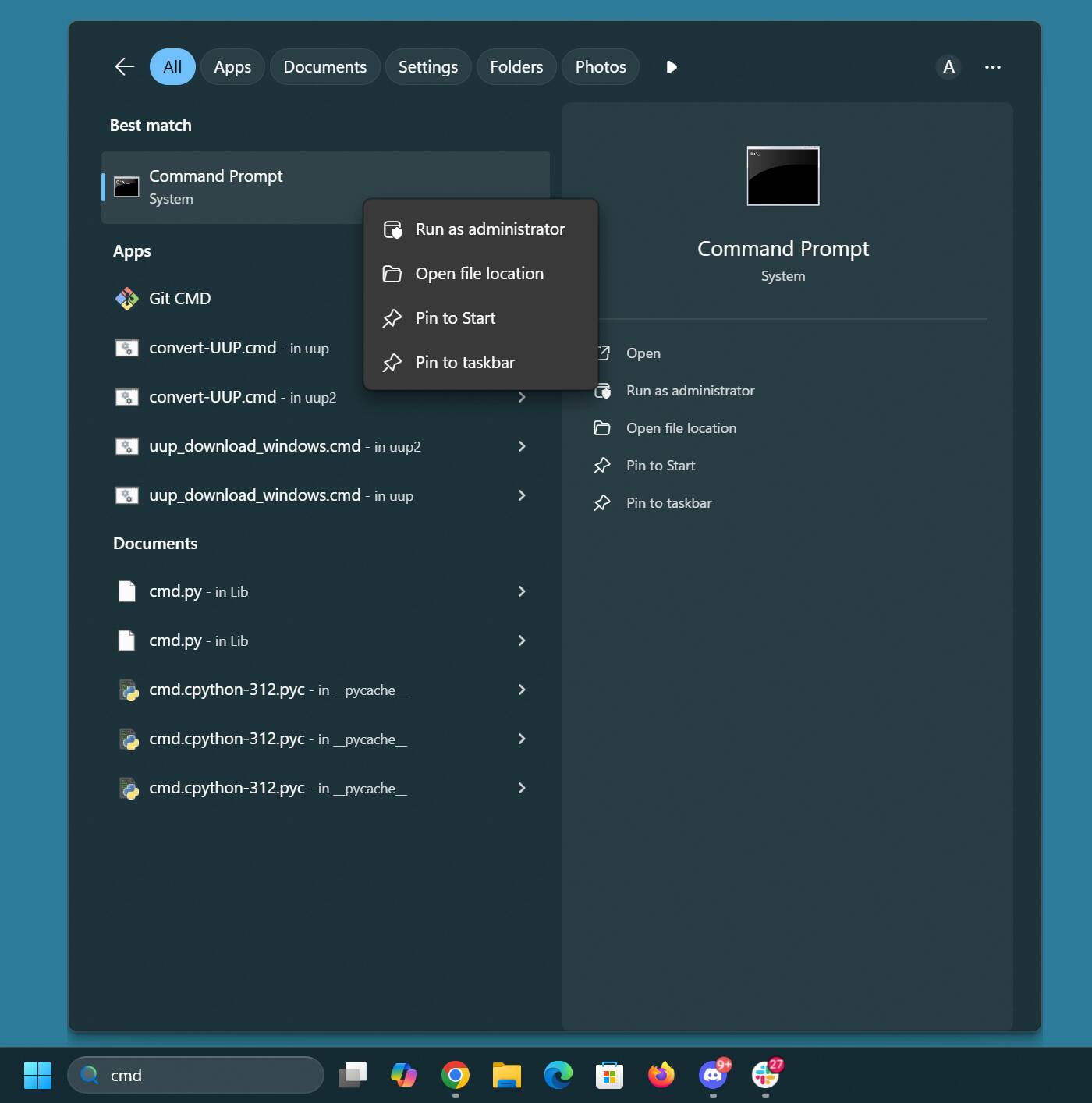
Run command prompt as an administrator - Click to enlarge
At the command prompt, change to the C:\vive directory.
cd c:\vive
Then run ViveTool as follows.
vivetool /enable /id:57156807,57259990,58527096,58381341
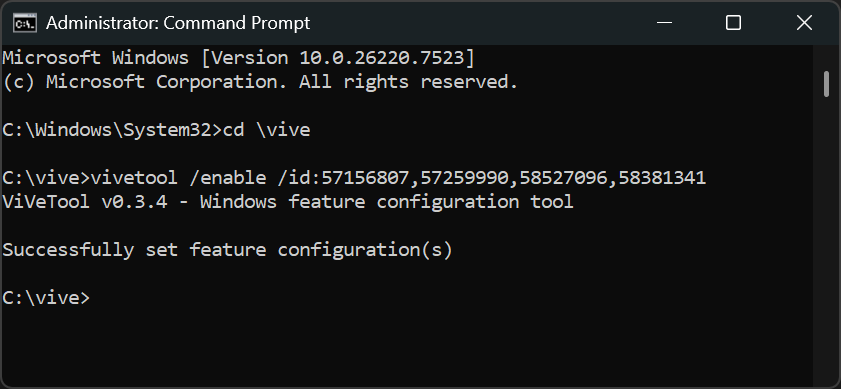
Enable features in ViveTool - Click to enlarge
Close the windows and reboot your PC. Once your PC is restarted, navigate to Settings > System > Advanced. There toggle Run dialog to on.
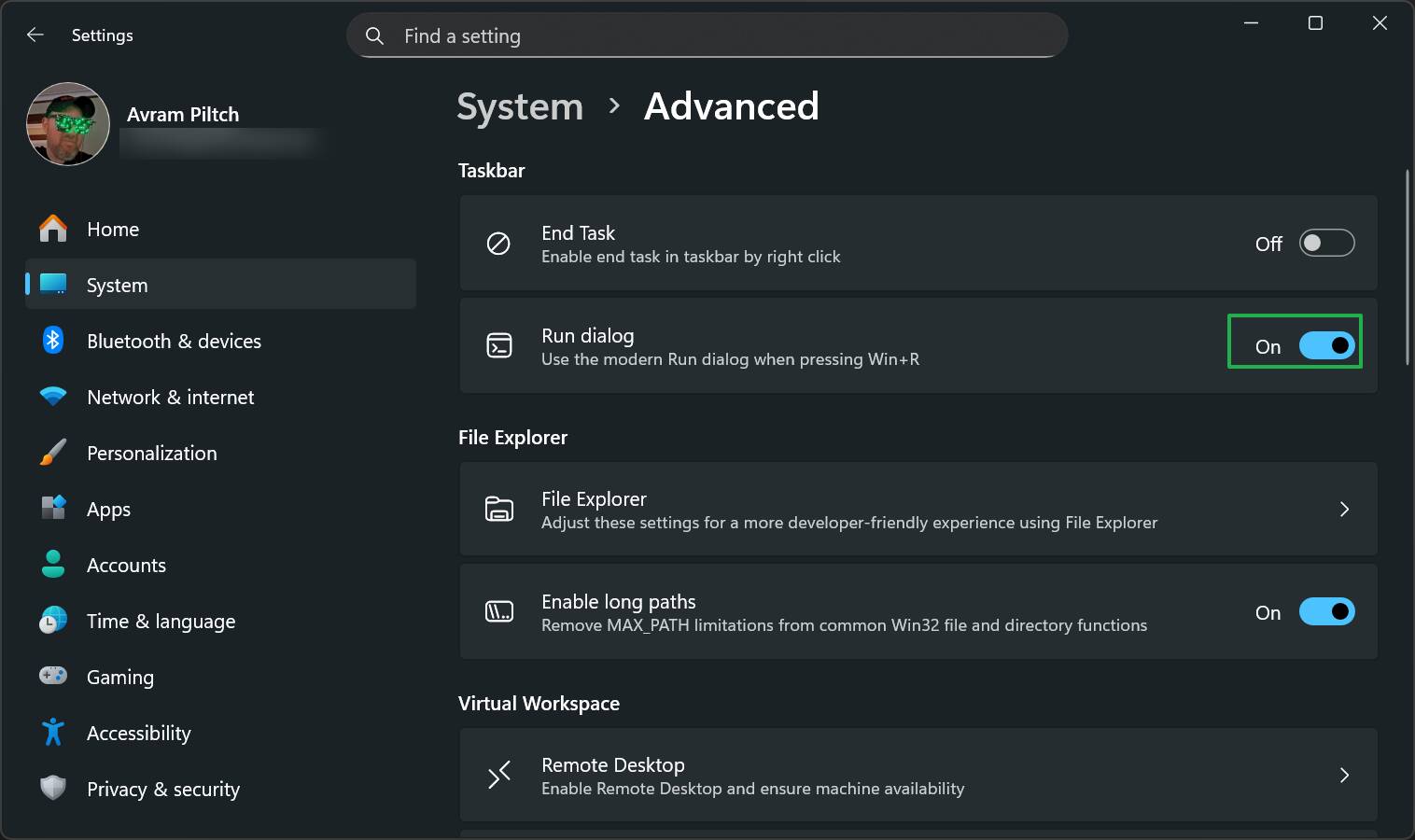
Enable Run Dialog in Settings -> System -> Advanced - Click to enlarge
Now, when you hit Windows key + R, you’ll see the new dialog box. If you get sick of it, toggle Run dialog to off in the Settings menu. ®