Your Android phone can double up as a travel router and bypass hotel Wi-Fi limits, here’s how
Bypassing captive portals and per-device limits is easy if you have a newer Android phone in your pocket.
Calvin Wankhede / Android Authority
One big complaint when traveling is that hotels, cruises, and airlines often charge for internet on a per-device basis. The first and second devices are usually provided with free Wi-Fi, but you have to start paying if you want to connect additional devices. Even when I travel alone, I frequently end up with four personal devices (two phones, a laptop, and a tablet), so I have to ration the internet connection among them. The situation worsens if I am traveling with family and friends.
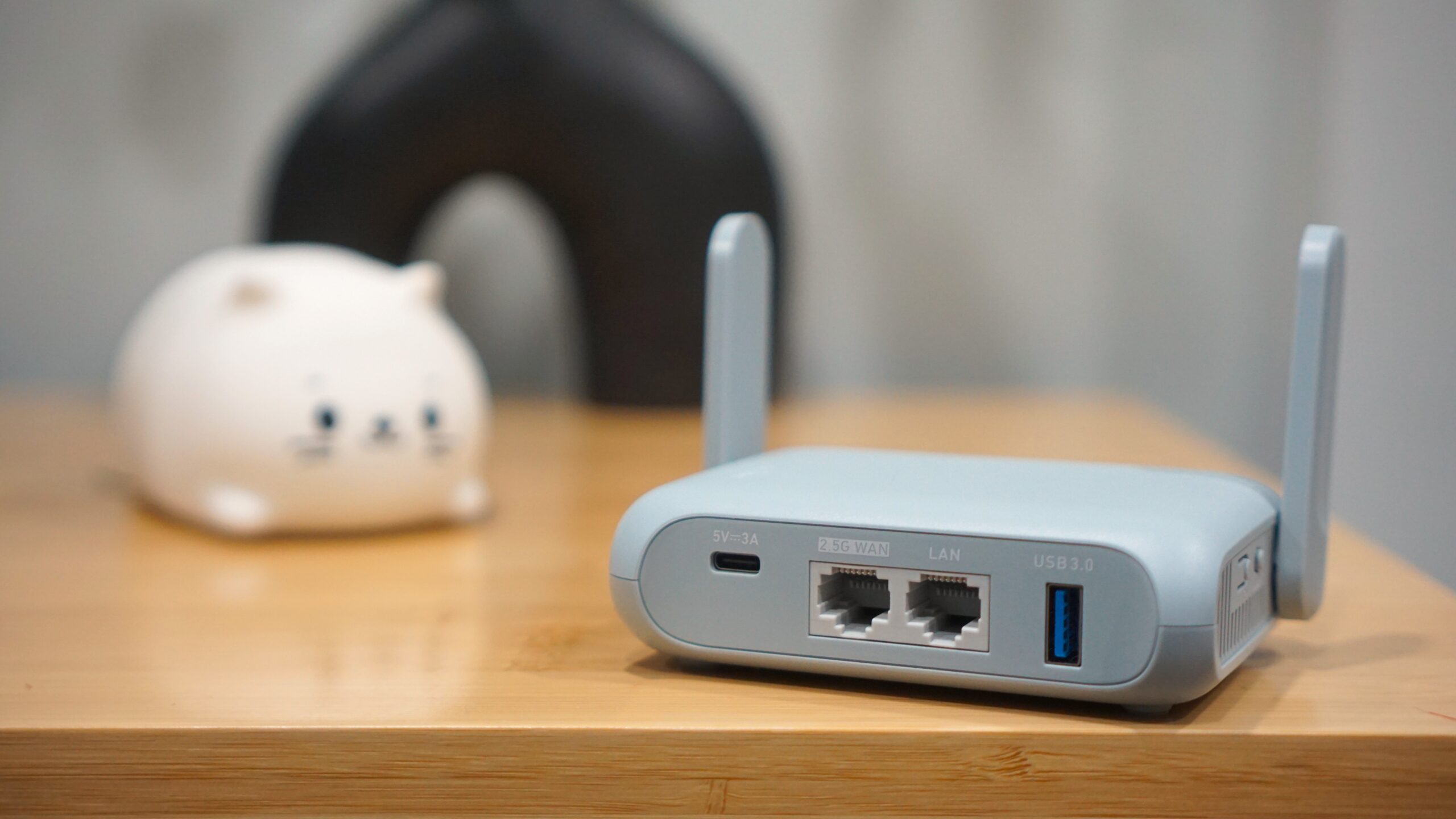
A travel router slots into this use case by allowing you to use only one connection with Wi-Fi and have all your personal devices connect to the travel router.
A travel router also helps you deal with a captive portal screen (the login screen that appears when you connect to public Wi-Fi) only once, rather than having to deal with it on a per-device basis. If you have more than a couple of devices, this can get tiresome very quickly. Some devices cannot handle captive portals at all, so they are often stuck without internet if you don’t rely on a travel router.
If you own a recent Android flagship, chances are you can already use it as a makeshift travel router for the above use cases through Wi-Fi sharing functionality.
As Kaushik Gopal reminds all of us, your Android phone can connect to a Wi-Fi network and then doubles up as a hotspot for your other devices to connect to and share that same Wi-Fi network. This differs from your regular hotspot connection, where you share your mobile data connection; in this case, you are sharing/repeating a Wi-Fi connection.
Using Wi-Fi sharing on Android, you can bypass per-device connection limits. You also have to deal with captive portal login screens only once. Wi-Fi sharing also helps re-enable local discovery on public networks — your connected devices can now “see” each other on your phone’s Wi-Fi network.
How to use Wi-Fi sharing on Android
To use Wi-Fi sharing on Android, you will need a relatively newer Android device, though the feature itself is not new. There are older phones/lower-end phones that may not support the feature, as the Wi-Fi hardware may not support concurrent Access Point and Station Mode, so they will be unable to act as both a client and a hotspot simultaneously. I’ve tested the feature on the OnePlus 13, Xiaomi 15 Ultra, and Pixel 9 Pro XL, and the option is available on all of them.
-
Connect your primary phone/tablet to the host Wi-Fi network:
- Firstly, connect your Android phone/tablet to the Wi-Fi network that you want to share.
- Next, you want to deal with the captive portal/login screen to connect to the internet.
- Check if your phone/tablet has a working internet connection through the Wi-Fi at this stage.