You’re factory resetting your Android phone wrong
Doing a simple wipe doesn't erase the traces of your device from your Google account.
Rita El Khoury / Android Authority
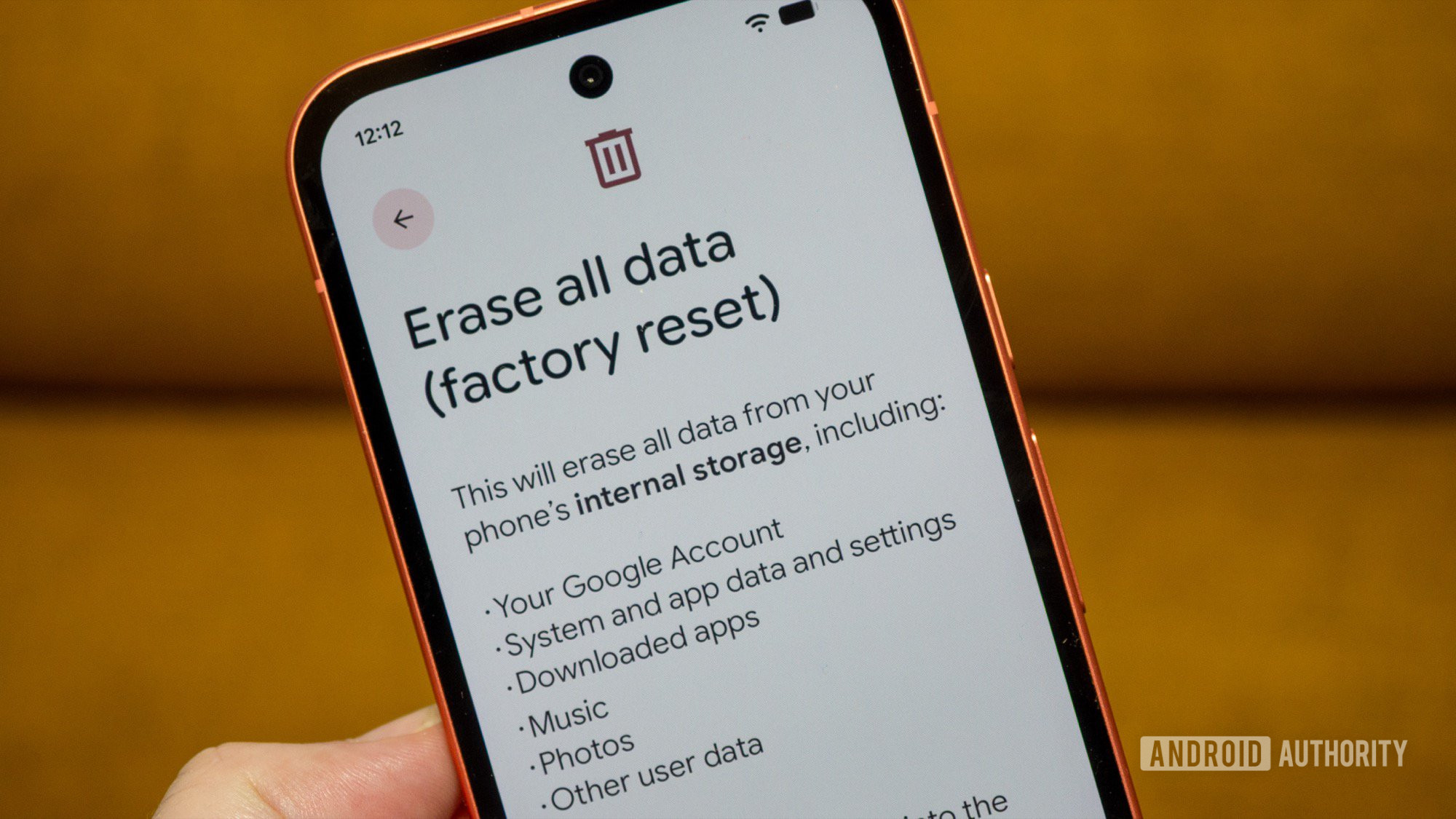
For the past 15 years, I’ve switched Android phones more than 50 times, easily. Each time I did that, I performed the same action on my old phone: Go to settings, find the factory reset option, and tap it. Simple, right?
But in the past few years, I started noticing something a little different. It seemed like my old phone didn’t dissociate from my Google account entirely, and there were remnants of it in a few places. I recently started looking into these and realized something: There’s a crucial step I should always do before factory resetting any Android phone, and I’ve been skipping it for years.
How do you factory reset your Android phone?
192 votes
The problem with a simple Android phone factory reset
When you factory reset an Android phone — in this case, my Pixel 9a — the phone itself goes back to its blank state. However, your Google account doesn’t seem to realize this has happened. What results are “ghost” presences of this phone across your Google account, i.e., it still shows up even after you’ve sold, donated, or thrown away that phone.
Rita El Khoury / Android Authority
Screenshot
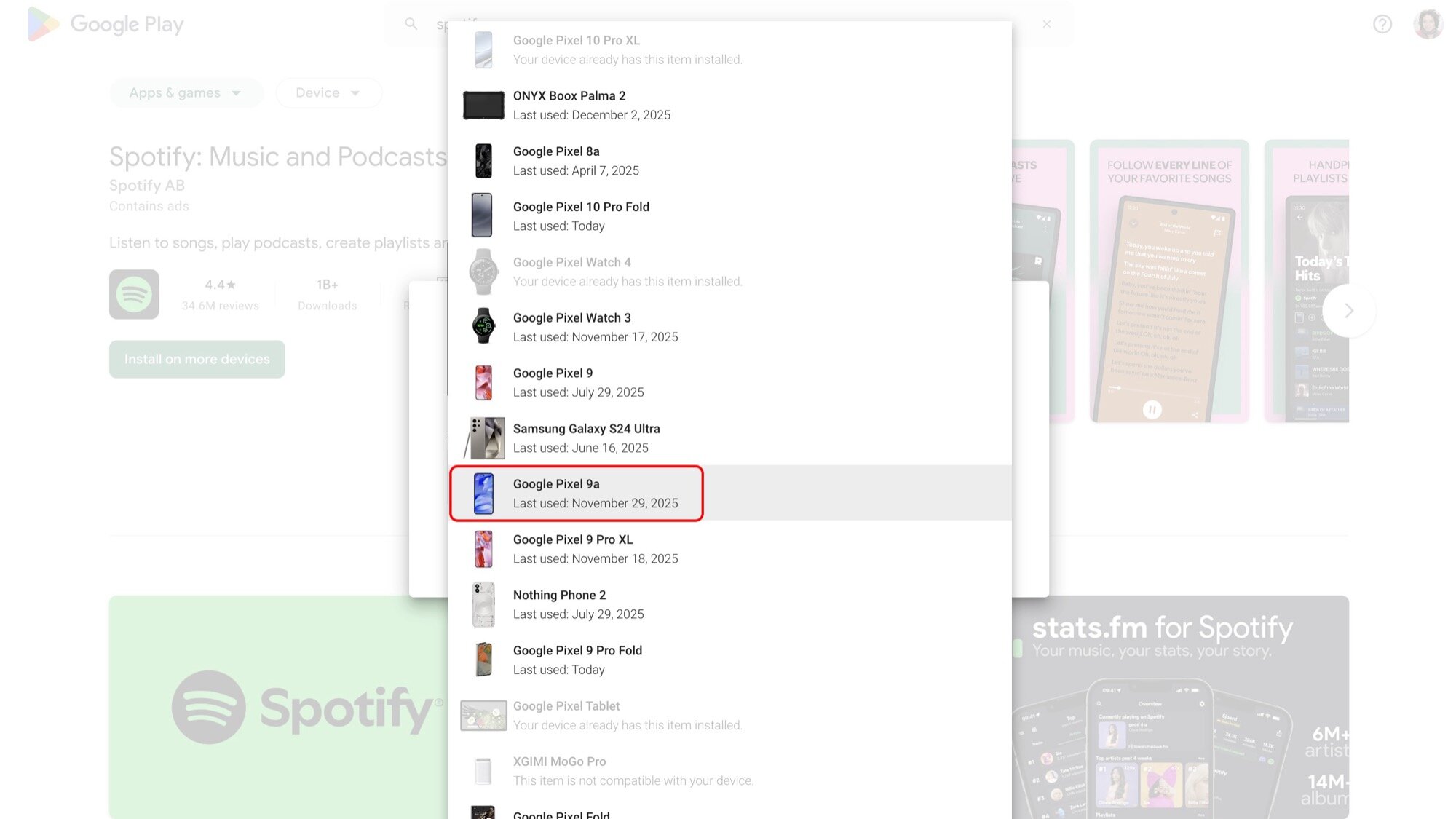
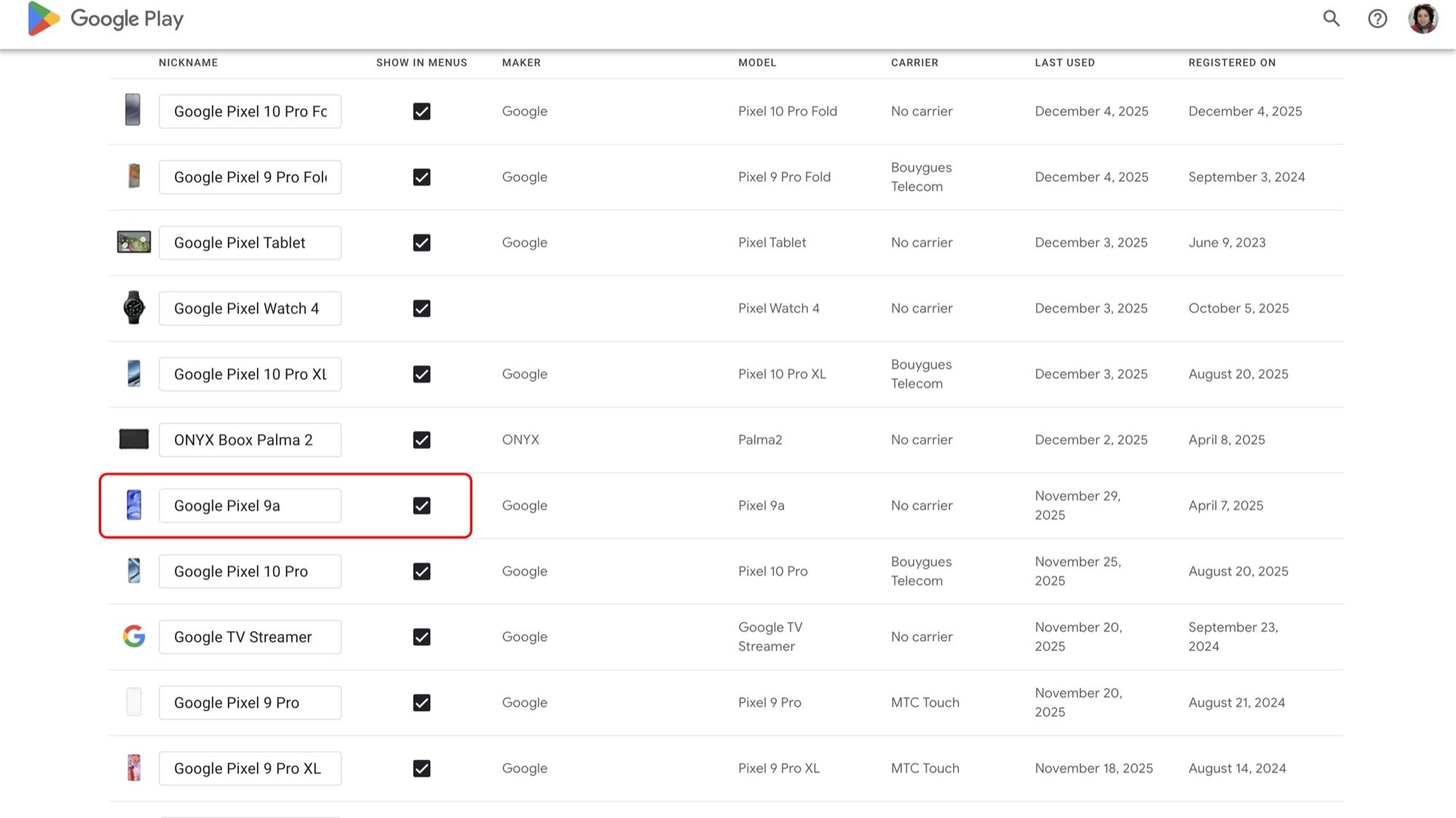
I noticed this at first with the Play Store. I would still see the name of my old wiped phones in the list of available devices I could install an app on. I tried to delete those phones, but there was no way to do so. The only solution was to go to play.google.com/library/devices and hide each phone I no longer wanted to see. This is what I first did with my Pixel 9a.
Rita El Khoury / Android Authority
Screenshot
Then, I realized that these old phones were starting to litter my Find Hub web and app too. Instead of seeing a list of only active phones, buds, watches, and trackers associated with my account, I was also seeing ghost devices I’d long ago reset and donated or sent to my Android Authority colleagues. The Pixel 9a is still there, but it only shows its last seen location, never updates to the current one, and can’t be deleted. It’s basically a useless stub in the app. The only option for me is to ask for a factory reset, which never happens because the phone is already wiped and can’t be reached remotely via my account. Even after several futile attempts to reset it, the phone remains in my Find Hub despite not being trackable at all.
Google Fi users have also complained about seeing these old, wiped phones as “inactive” devices because they were never formally de-authorized from the network.
Rita El Khoury / Android Authority
Screenshot
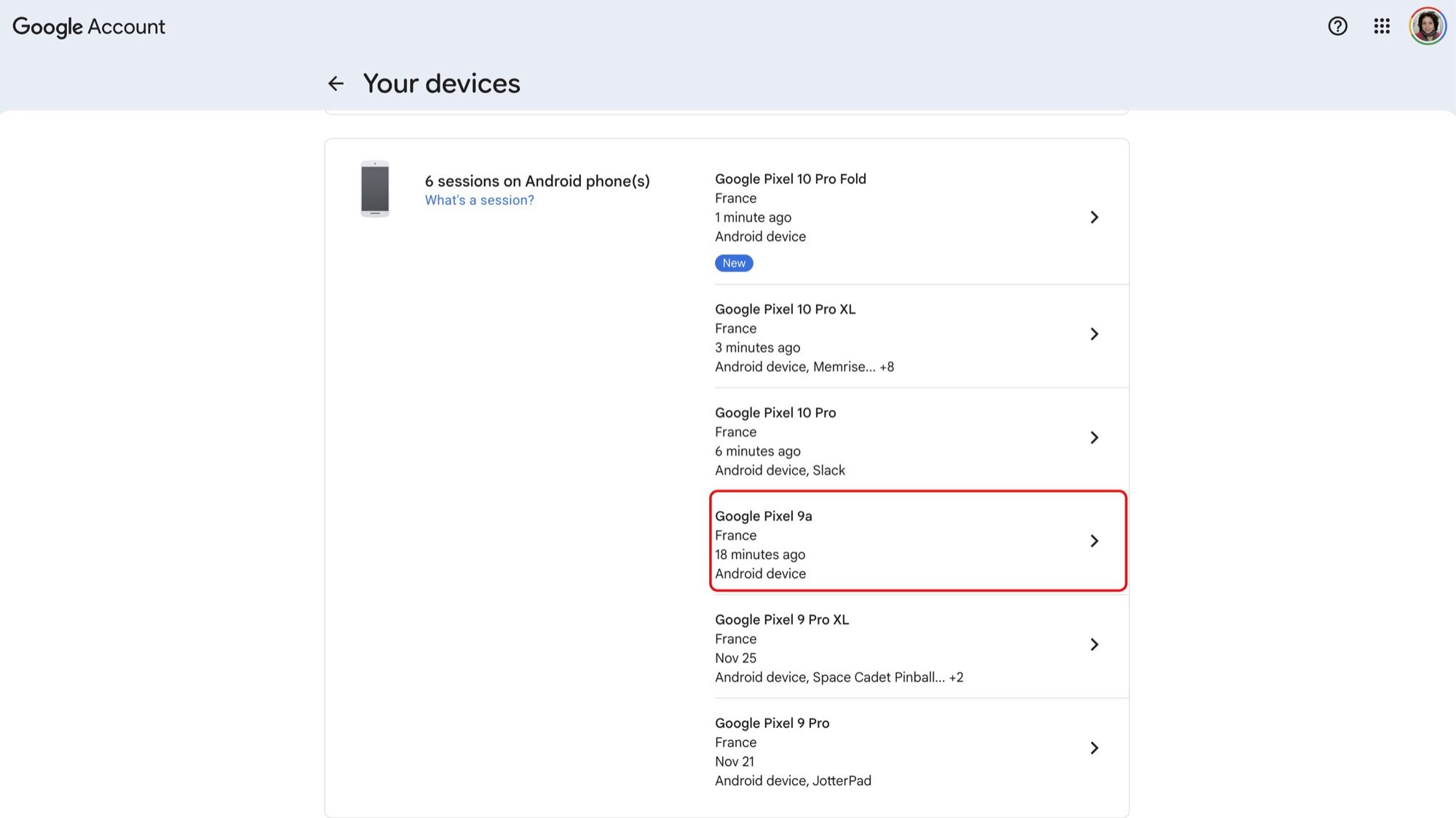
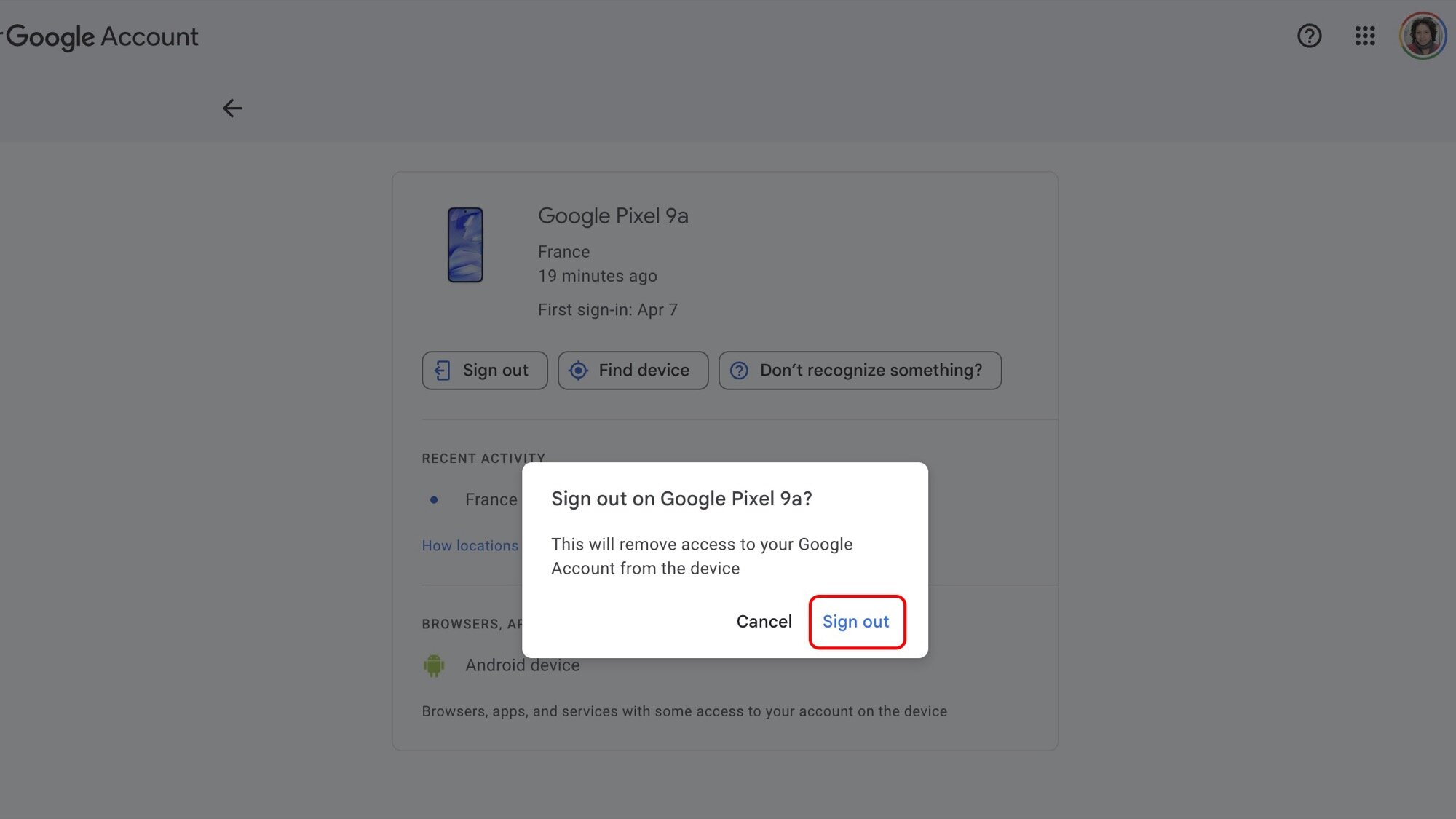
Finally, I saw these ghost phones on myaccount.google.com/device-activity, where they also showed the last time I used them actively. There, though, I could tap on Sign out, which would magically erase the ghosts of my old phones from all of my Google services, including the Play Store and Find Hub.
Rita El Khoury / Android Authority
Screenshot
Sometimes, though, if the device is super old, it doesn’t show up under this Device Activity page, which makes this workaround not so reliable. There is a foolproof solution, though.
You should remove your Google account first
Rita El Khoury / Android Authority
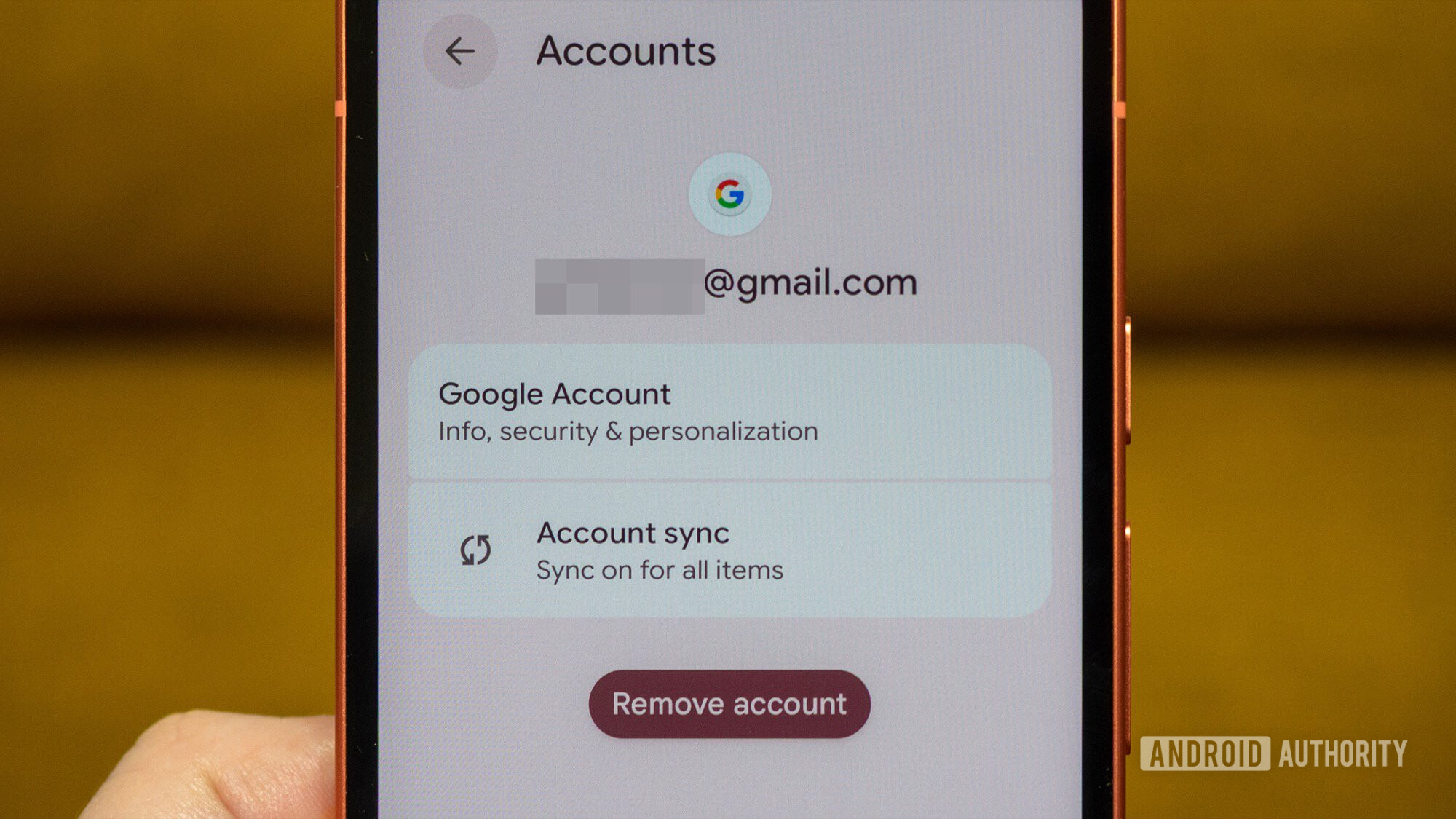
Before you factory reset your Android phone, there’s one crucial step you should take: remove your Google account from it. Google doesn’t explain this when you go to wipe your phone — it does say that your Google account will be removed from it, but doesn’t tell you that your phone won’t be removed from your Google account. The only mention of this “trick” is in a Play Store support page, where Google says (emphasis mine):
Google Play keeps track of your previously used devices. You cannot remove a device from your Google Play history, but you can:
- Remove your account from a device. If you remove your account from an old device, your Google Play history or activity are not visible on that device.
- If you plan to sell or give away your device, first remove your account and do a factory data reset.
- If you already sold or gave away a device but didn’t remove your account, you can remove your account from the device remotely. Learn how to sign out on a device you no longer use.
- Hide the device on Google Play. When you hide a device, it doesn’t show up when you download something from the Google Play website.
This is where I understood that removing the account from the device before it’s wiped tells all of Google’s services that this particular device is no longer associated with your account and should therefore not be shown anymore. Not as active, not as inactive, not as last seen, not as hidden. Just gone.
To do this, follow these steps:
- Go to Settings, find Google services and preferences (on non-Pixel phones, this might be in a sub-menu called Google or Accounts. Use search.)
- Tap on your Google account, then Manage accounts on this device
- Find the Google account you want to delete, tap it.
- Choose Remove account and confirm that once again.
You should repeat the last two steps for every single Google account you’ve used on this device if you want to dissociate it entirely and stop all ghost, inactive devices from showing up ever again. When you’re done, the device will completely disappear from the Play Store (not just go hidden, it won’t even be there in the list), as well as Find Hub, Google Fi, and Google’s Device Activity page.
After that, you can go ahead and perform a regular factory reset like you’re used to in order to wipe it, then do whatever you want with the phone. Sell it, donate it, put it in a drawer — whatever. The important part is that your device is no longer associated with any services or showing up there despite being long gone.
Follow
Thank you for being part of our community. Read our Comment Policy before posting.